

Room Booking..
This is Page is under testing
We understand that accessibility is crucial for all members of our community. While our recent renovations have improved accessibility at ground level, we acknowledge that the first floor is not currently accessible for wheelchair users. We are committed to making every effort to facilitate all groups and individuals. Our management team will prioritize the use of ground-floor rooms for any group that includes people who cannot use the stairs, ensuring that everyone has access to our services.
-
Book Room on First Floor
From: €40.00 -
Book Room on Ground Floor
From: €40.00

Guide: How to Book a Room for Your Event at Rush Multipurpose Youth Facility (RMYF)
Good news! You can now easily book activity rooms at the Rush Multipurpose Youth Facility (RMYF) and make payments online according to your required dates and times. Follow these simple steps to secure your space:
Step 1: Select Your Room Floor RMYF offers activity rooms on both the ground floor and the first floor. Depending on your needs, you can choose from:
Ground Floor: 2 available rooms
First Floor: 5 available rooms
Step 2: Review Room Sizes and Hourly Rates Before selecting a room, please check the size and hourly rates for each available space.
Activity Room 1, Ground Floor
Activity Room 2, Ground Floor
Activity Room 3, First Floor
Activity Room 4, First Floor
Activity Room 5, First Floor
Activity Room 6, First Floor
Activity Room 7, First Floor
Once you’ve selected your preferred room and reviewed the rates, choose the date(s) and time(s) for your event.
Step 4: Choose Your Room, Date, and Time
On the room booking page, select the room you wish to book from the "Type" drop-down menu.
After selecting the room, choose the date and time for your booking. Make sure the timeslot fits your schedule.
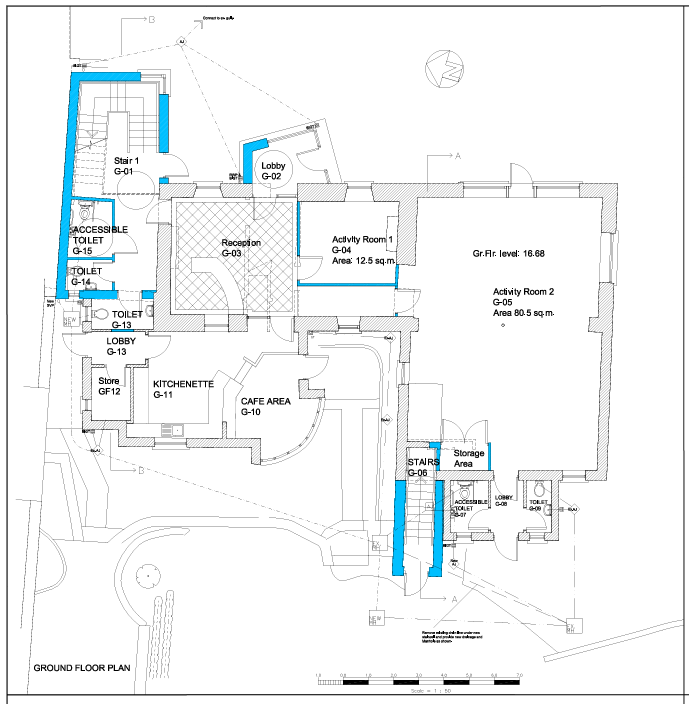
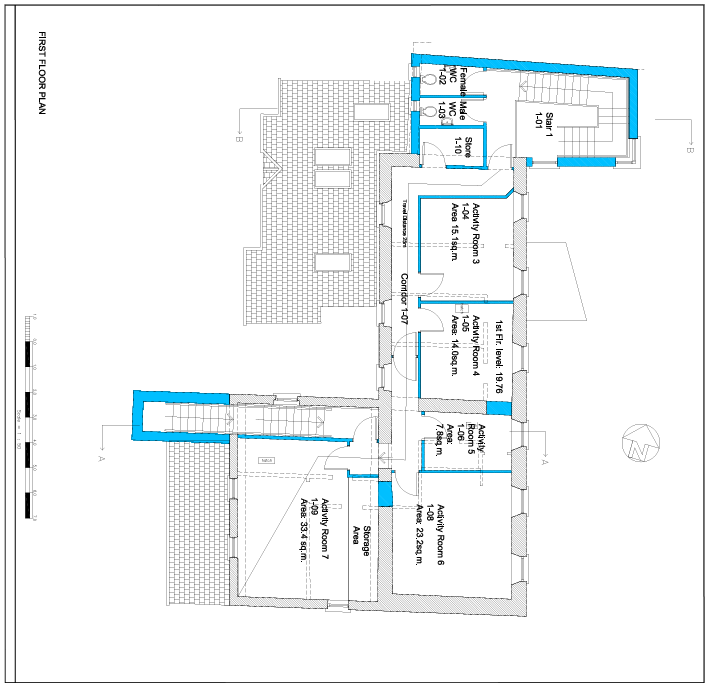
If you need more information, you can also check the floor plan available on the booking page to understand the location and size of the room you selected. This will help you make sure the room suits your event needs.
Step 5: Add to Booking Cart
Once you've selected the room, date, and time, press the "Book Now" button.
Your selected date and timeslot will be added to your booking cart.
For Single-Day Events:
If your event is a single-day booking, you can now proceed to the checkout and finalize your booking.
For Multi-Day Events:
If you need to book the room for multiple days or time slots, continue adding your desired dates and times by repeating the previous steps.
Keep adding the Date and time slots to your booking cart, then proceed to checkout once all your desired dates are selected.
The system will not allow bookings for any date or time that has already been reserved by someone else.
Need Assistance? If you face any difficulties or have questions, please contact RMYF Support for assistance.

Our Partners & Supporters